Vocal Video now offers 30 caption styles, from clean, corporate captions that stay out of the way to bold, word-by-word animation built for TikTok, Reels and Shorts. Pick a style in one click, fine-tune any detail on the Customize tab, and save it in a template so every video you make looks the same.
Captions do a lot of work in a testimonial. Plenty of viewers watch with the sound off, especially on social feeds, and the words a customer says are the proof you're sharing. A caption style that matches your brand and your channel makes that proof easier to read and harder to scroll past.
What's new in captions
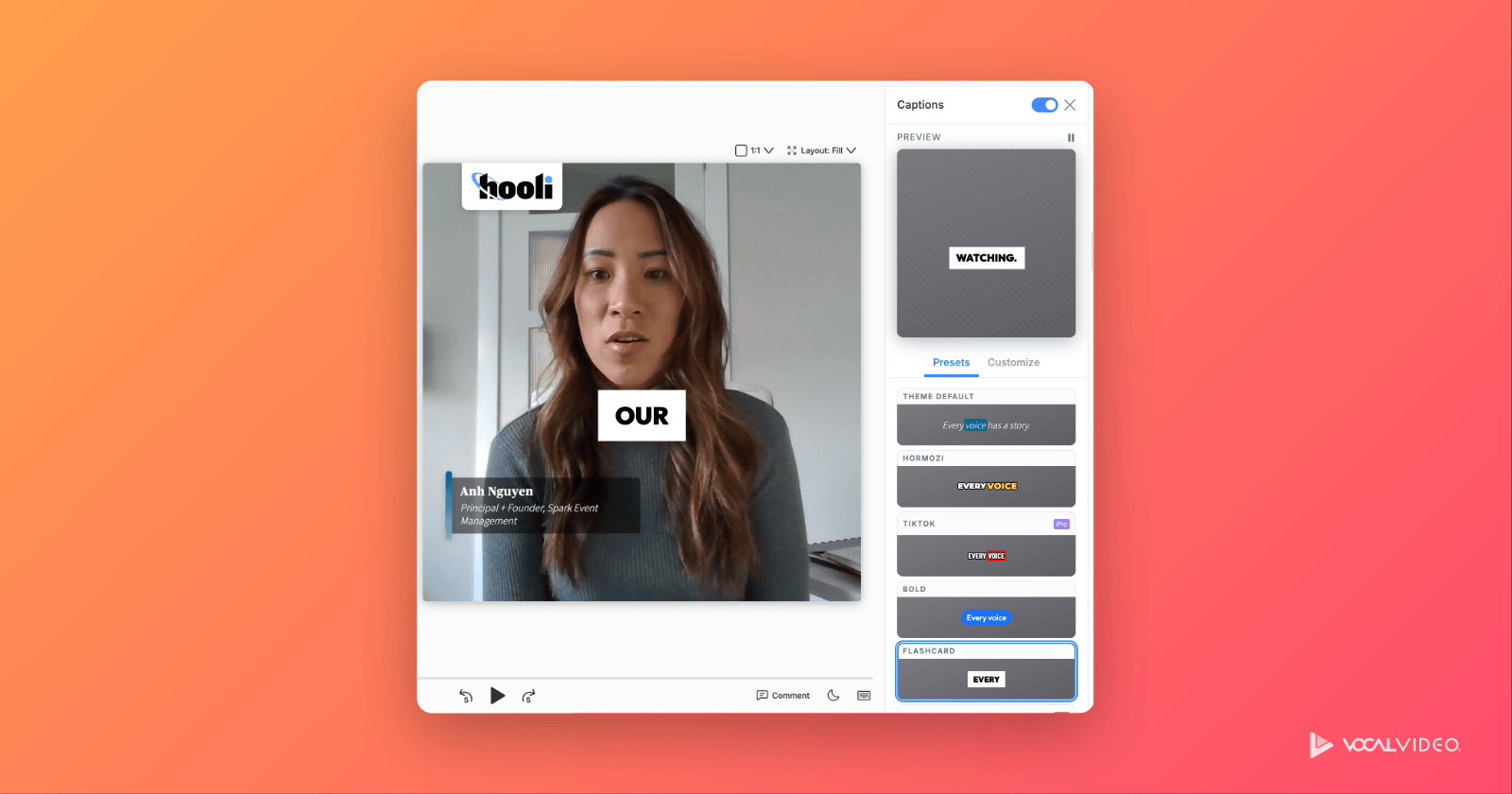
The Captions panel in the video editor has been rebuilt around two tabs:
- Presets — 30 ready-made caption styles. Click one and it applies to the whole video, with a live preview in the panel.
- Customize — every detail of the style you picked: size and position, font, outline and shadow, how the spoken word is highlighted, colors, backgrounds, and motion.
A switch in the panel header turns captions on or off. You can also click a caption right in the video preview to Change Preset, Customize, Hide captions, or Show in Transcript to jump to those words and fix the text.
All 30 caption styles, grouped by feel
The styles fall into six broad families. We've grouped them here to help you choose; in the app they appear together on the Presets tab.
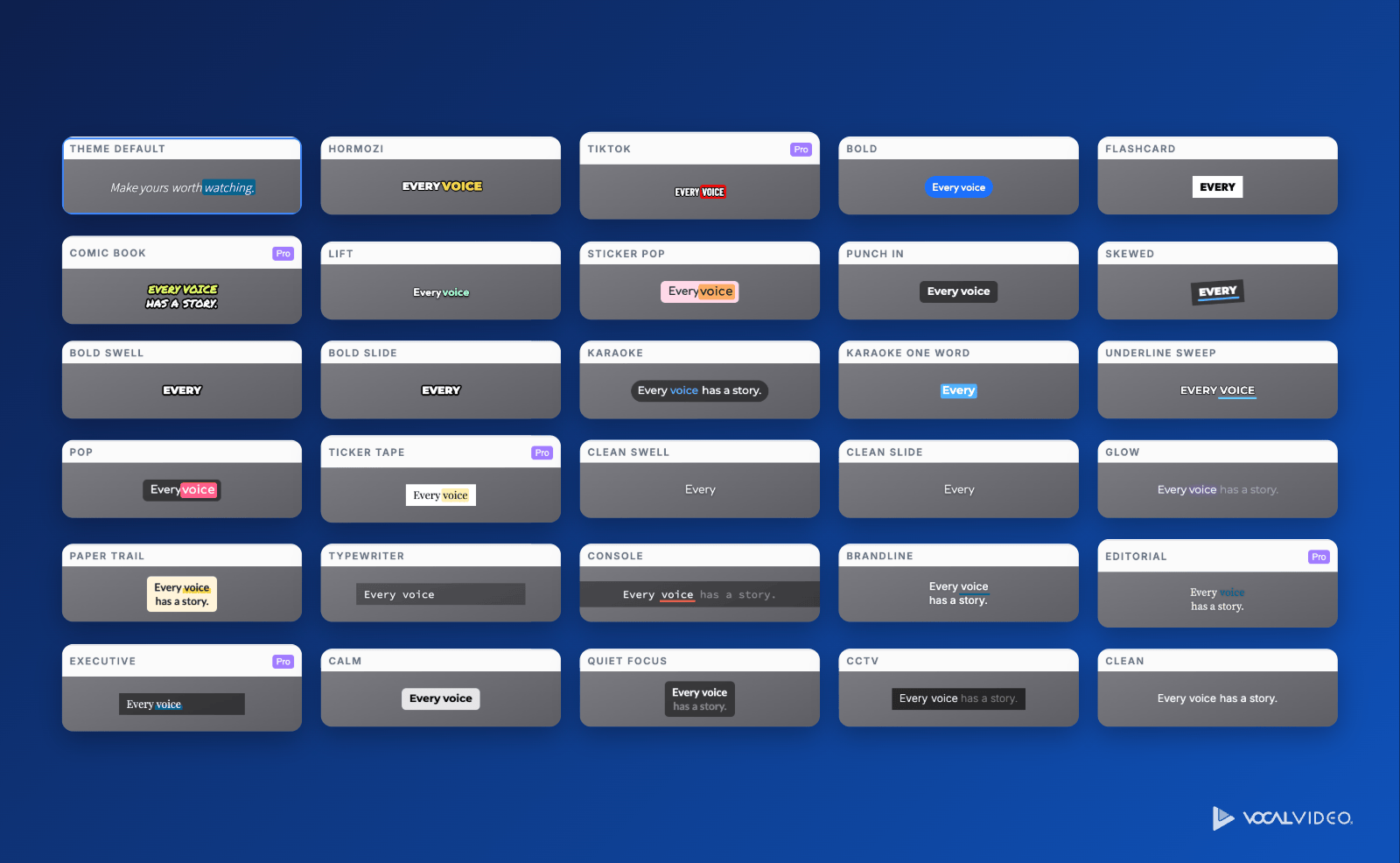
| Feel |
Good for |
Styles |
| On-brand |
Following your video theme's own typography |
Theme Default |
| Restrained |
Professional, corporate and B2B testimonials |
Brandline, Executive, Calm, Quiet Focus, CCTV, Clean |
| Balanced |
Readable, versatile captions for explainers, training and demos |
Bold, Lift, Punch In, Karaoke, Karaoke One Word, Underline Sweep, Clean Swell, Clean Slide |
| Refined |
Elegant, premium and editorial brands |
Ticker Tape, Glow, Paper Trail, Editorial |
| High energy |
Bold, punchy social video for TikTok, Reels, Shorts and ads |
Hormozi, TikTok, Flashcard, Comic Book, Sticker Pop, Skewed, Bold Swell, Bold Slide, Pop |
| Techy |
Monospace and typewriter looks for developer and startup audiences |
Typewriter, Console |
Five styles, TikTok, Comic Book, Ticker Tape, Editorial and Executive, use a Pro font and are marked Pro on the Presets tab. On Free and Essential plans, switch the font on the Customize tab before you publish.
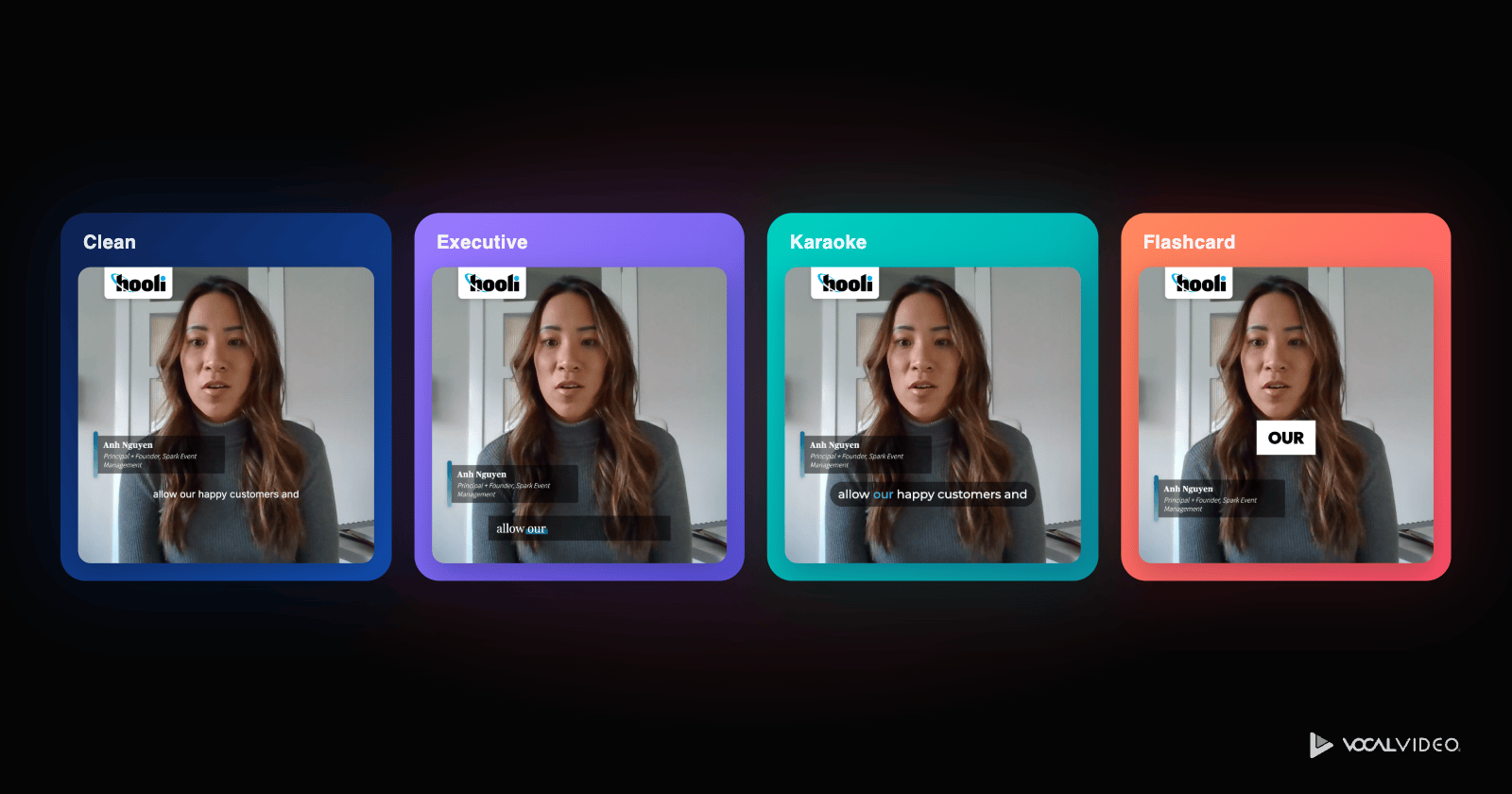
How to choose a caption style for your video
Start from where the video will be watched and who's watching it:
- A customer testimonial on your website or in a sales deck: a Restrained style, or Theme Default. The customer's words should carry the video, not the captions.
- A vertical cut for TikTok, Reels or Shorts: a High energy style. Word-by-word motion holds attention in a fast-scrolling feed.
- An employee story for your careers page: a Balanced or Refined style that fits your employer brand.
- Training, onboarding or a product explainer: a Balanced style, chosen for readability over flair.
- An audience of developers: a Techy style can feel native.
Whatever you pick, preview it on a phone. Captions that look fine on a laptop can crowd a vertical frame, and Size & Position on the Customize tab fixes that in seconds.
Make any style your own
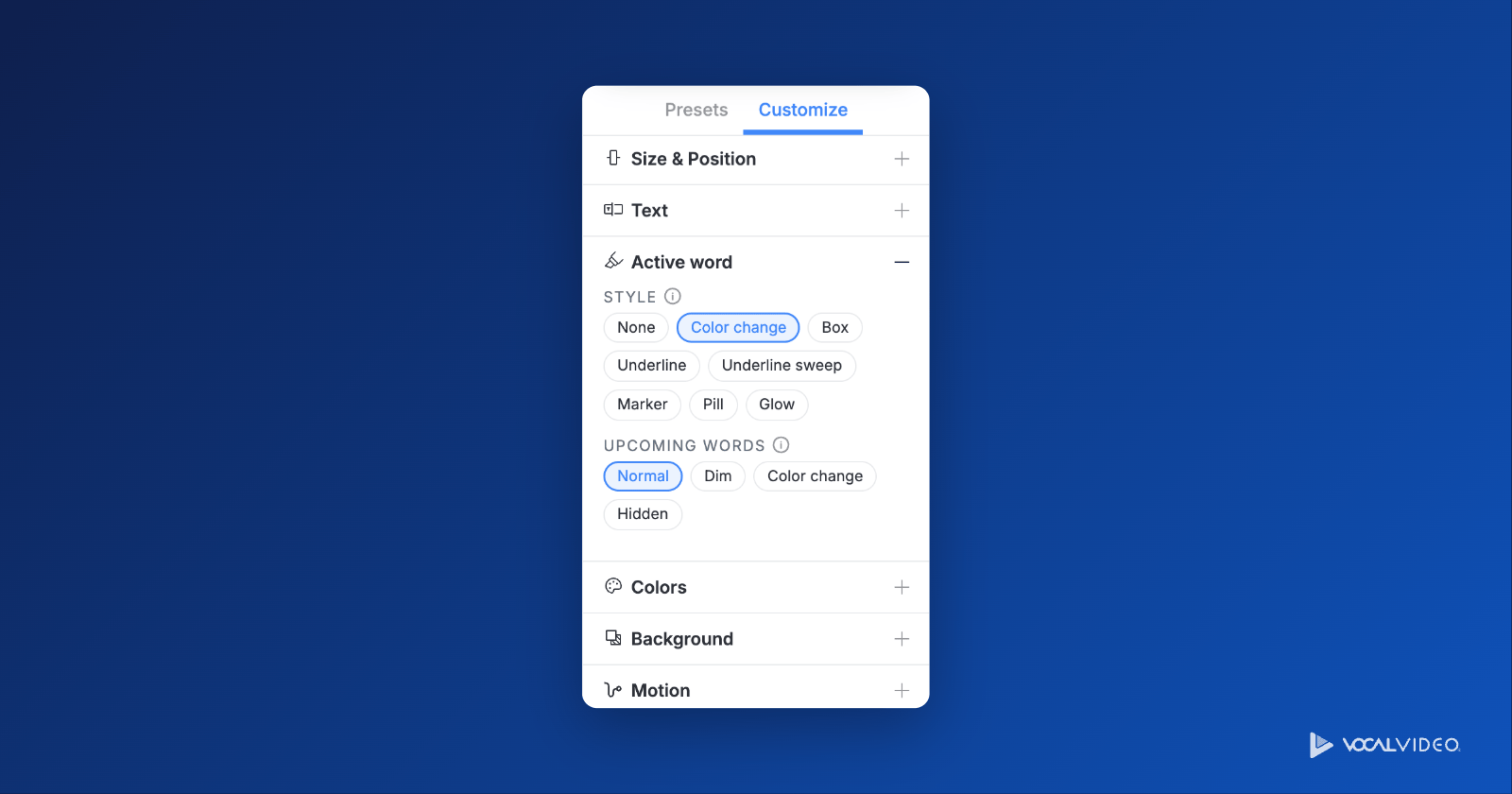
Every preset is a starting point. The Customize tab is organized into six sections:
- Size & Position — where captions sit, how large they are, how wide they run, and an optional tilt.
- Text — the caption font, outline, shadow, how many lines appear at once, and the maximum words per phrase.
- Active word — how the word being spoken is highlighted (a color change, a box, an underline, a marker, a pill or a glow), and how upcoming words look before they're spoken.
- Colors — the text, the active word, upcoming words, the background, and the outline or shadow.
- Background — a box behind each phrase, its opacity, and an optional full-width gradient or frosted backdrop.
- Motion — how each phrase enters, how each word animates as it becomes active, and the speed.
Changed your mind? Reset to preset puts the style back the way it started.
Set your caption style once, in a template
Your caption style is part of your video's look, so it belongs in a video template. Open a template, choose a style on its Captions panel, and every video built from that template, including the draft videos your collectors create automatically, uses it. Keep a restrained style in your customer-story template and a high-energy one in your social-cut template, and you never set captions by hand again.
Frequently asked questions
How many caption styles does Vocal Video have?
Vocal Video has 30 caption styles, from minimal styles like Clean and Calm to animated, word-by-word styles like TikTok, Karaoke and Flashcard. Each can be customized on the Captions panel's Customize tab.
Can I use a different caption style in each video?
Yes. The caption style is set per video on the Captions panel, and a template sets the starting style for every video built from it.
Can I edit what the captions say?
Yes. Captions come from the video's transcript, so you correct the words by editing the transcript. Click a caption in the preview and choose Show in Transcript to jump straight to them.
Do caption styles use AI credits?
No. Choosing and customizing caption styles doesn't use AI credits. Credits are spent by AI effects such as Studio Sound when a video is published.
Can I turn captions off?
Yes. Use the switch at the top of the Captions panel, or click a caption in the preview and choose Hide.
Try the new caption styles
The new caption styles are live in every Vocal Video account. Open any video, click Captions in the right sidebar, and try a few presets on your own footage. New to Vocal Video? Start free.