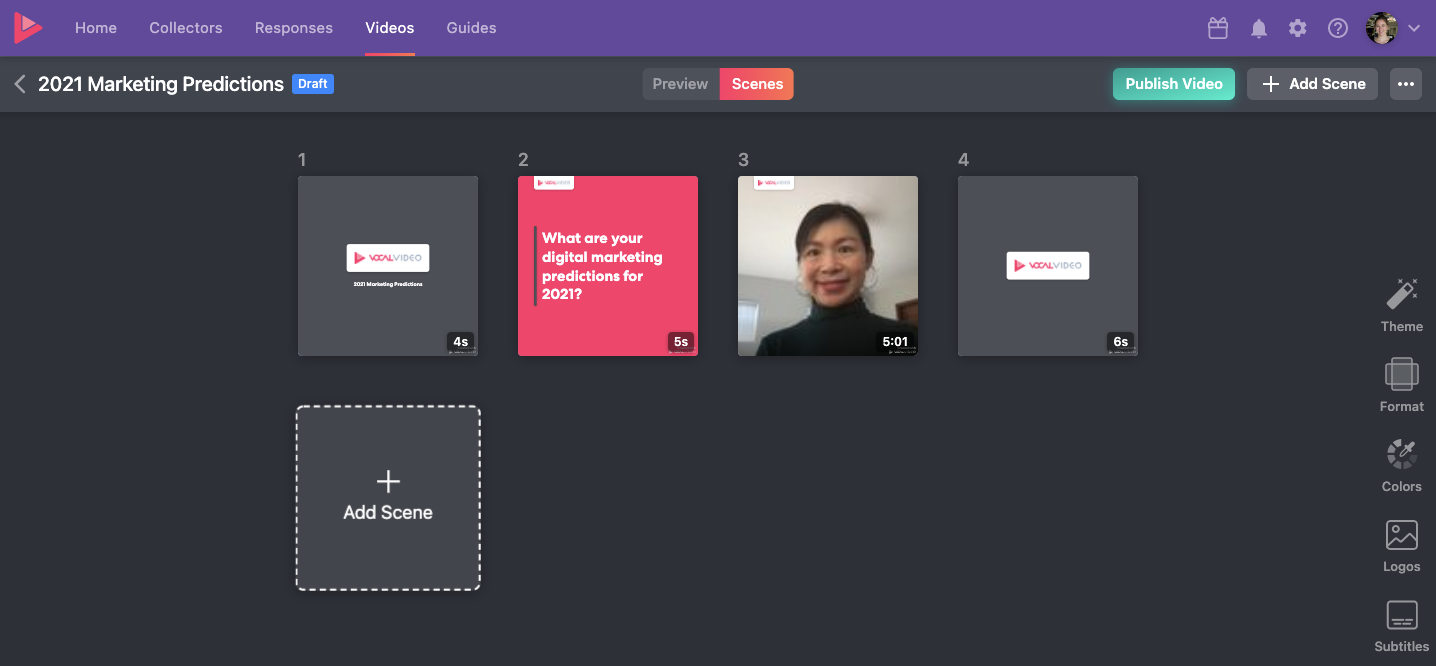
To add a custom image to your video in your Vocal Video account, you'll go to the Editor, click on the Scenes Tab, and then select "Add Text Scene".
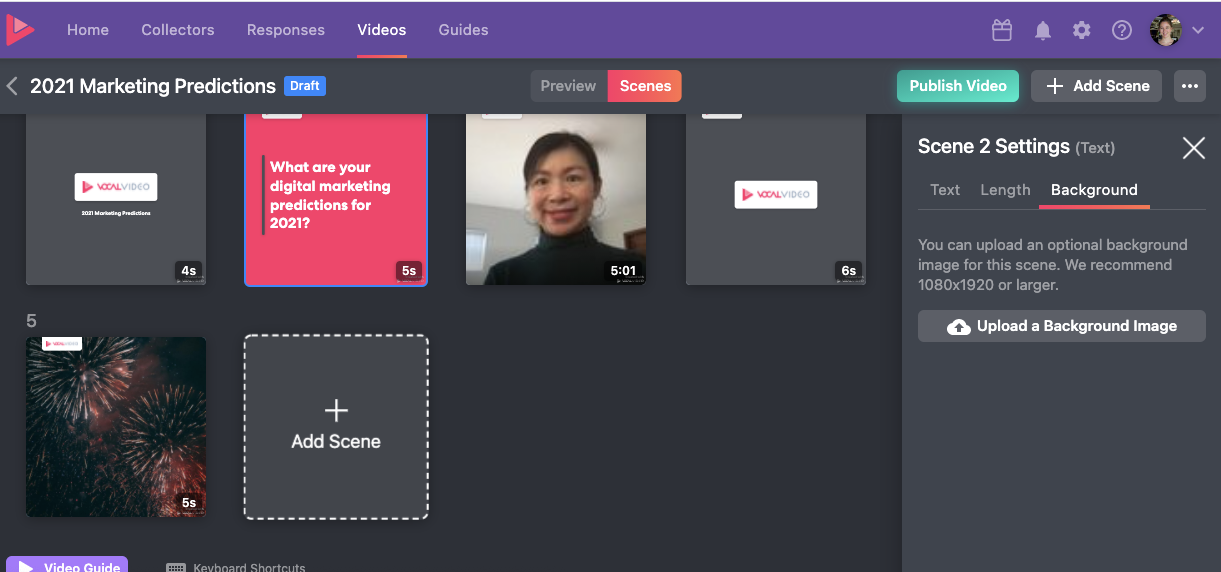
Then click on the new text scene to select it, and go to the Background option on the left side to upload your new background image.
Want to upload external video like B-roll, animated logos, and video clips captured outside of VocalVideo? You can do that too. Here's more info.