
Connect ChatGPT to Vocal Video
ChatGPT reaches Vocal Video the same way Claude does, with one extra step: custom connectors are a Developer mode feature, off by default. On a Business, Enterprise, or Edu workspace an admin has to enable it first.
1. Turn on Developer mode
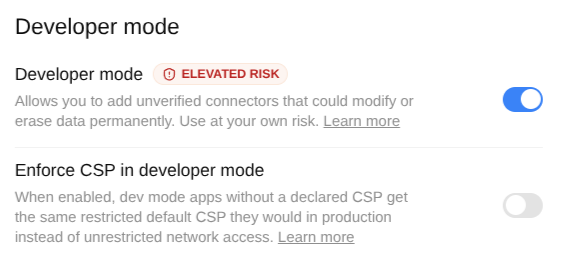
Open Settings → Security and login, scroll to Developer mode, and switch it on. It's flagged elevated risk because it lets you add connectors OpenAI hasn't reviewed — that's what we are.
2. Create the plugin
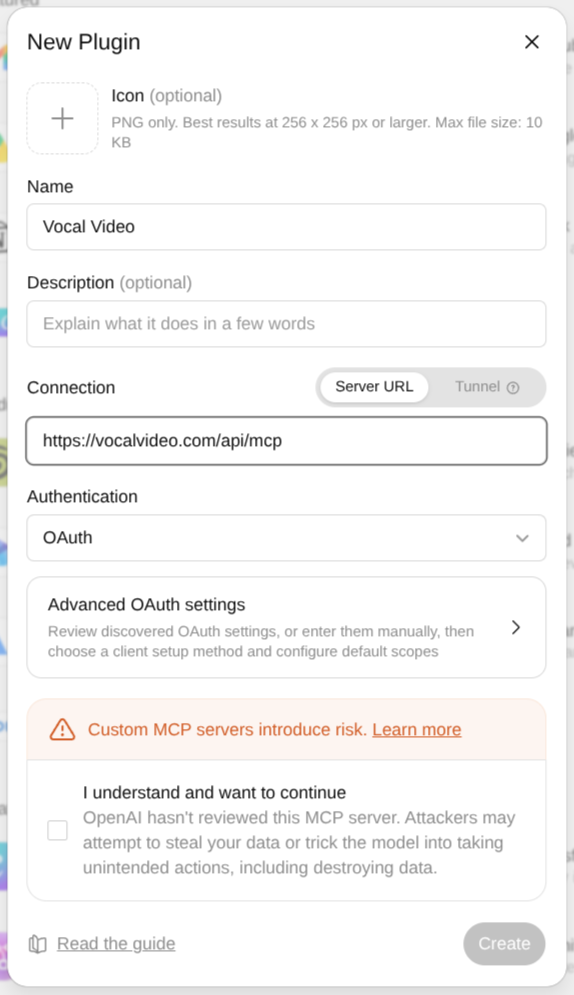
Open Plugins in the left sidebar and click + next to the search box.
- Name: Vocal Video
- Connection: Server URL —
https://vocalvideo.com/api/mcp - Authentication: OAuth
Leave Advanced OAuth settings alone; ChatGPT discovers what it needs from the URL. Tick I understand and want to continue and click Create.
ChatGPT sends you to a Vocal Video sign-in: log in, pick a workspace if you belong to more than one, and click Allow. ChatGPT acts as you, in that one workspace — there's nothing to share with teammates; each person connects with their own account.
3. Use it in a chat
Start a new chat, click + in the composer, and pick Vocal Video from the tools. Then ask:
- "Summarize what people said in my Pricing collector."
- "Which Q3 replies should I star?"
- "Write an invitation for the Customer Stories collector."
- "Give me the share link for the Acme testimonial."
ChatGPT asks you to confirm each action that changes something before it runs, and anything that emails real people previews first.
What ChatGPT can reach
The URL above loads the collect and produce tools — collectors,
invitations, replies, storyboards, templates. Append ?toolsets=all for
everything, or pick a mix; the options are the same as for
Claude.
If it doesn't connect
- No + button on the Plugins page — Developer mode isn't on, or your workspace admin hasn't enabled it.
- Sign-in works but every request fails — API access isn't enabled on your account. The MCP server is included on Essential plans and up. Get in touch.